
You only need three things
- →Endpoint URL: https://api.unlimitedai.sh/v1
- →API key: the sk-... key you received after your purchase
- →Model ID: any ID from the models page, e.g. z-ai/glm-5.3
Your settings, in plain text
If your tool asks for these fields, fill them in exactly like this. That is the whole setup for most tools.
Universal settings
Endpoint URL: https://api.unlimitedai.sh/v1
API Format: Chat Completions (/chat/completions)
API Key: your sk-... key
Model ID: z-ai/glm-5.3
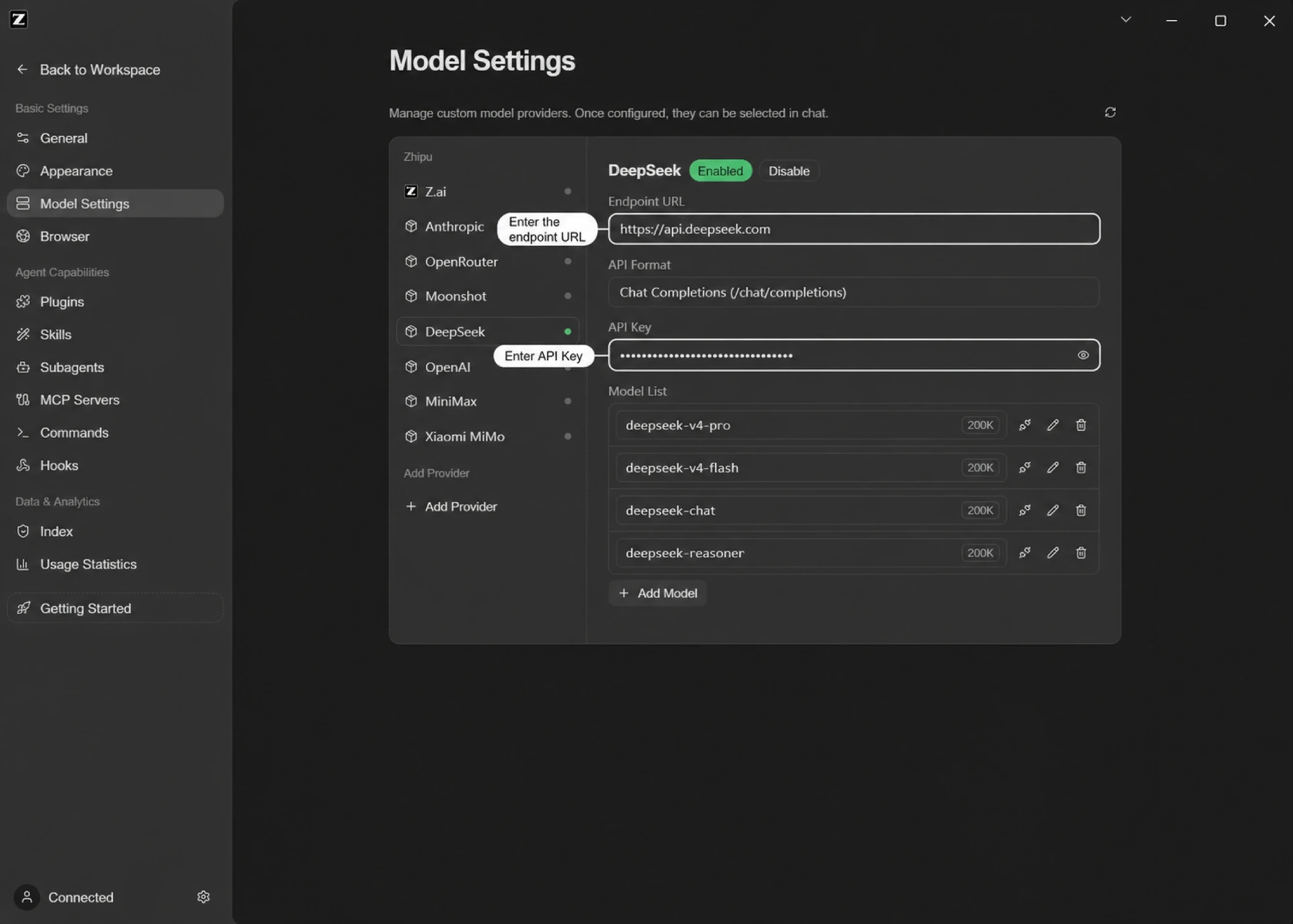
Set up ZCode (recommended)
ZCode lets you save the key once and reuse it in every chat. Open Settings → Model Settings, then:
- →Click Add Provider and give it a name, e.g. unlimitedai
- →Endpoint URL: paste https://api.unlimitedai.sh/v1
- →API Format: leave it on Chat Completions (/chat/completions)
- →API Key: paste your sk-... key
- →Under Model List, click Add Model and type a model ID such as z-ai/glm-5.3 — repeat for every model you want
- →Toggle the provider to Enabled and pick one of its models in chat
Claude Code
Paste this one-liner in your terminal, replacing sk-xx with your key.
One-liner
ANTHROPIC_BASE_URL='https://api.unlimitedai.sh' ANTHROPIC_AUTH_TOKEN='sk-xx' CLAUDE_CODE_DISABLE_NONESSENTIAL_TRAFFIC=1 claude --model 'anthropic/claude-opus-4.8'Codex CLI
One-liner
UAI_API_KEY='sk-xx' codex -m 'openai/gpt-6-luna' -c 'model_provider="uai"' -c 'model_providers.uai={name="unlimitedai.sh",base_url="https://api.unlimitedai.sh/v1",env_key="UAI_API_KEY",wire_api="responses"}'OpenCode
One-liner
UAI_API_KEY='sk-xx' OPENCODE_CONFIG_CONTENT='{"provider":{"uai":{"npm":"@ai-sdk/openai-compatible","name":"unlimitedai.sh","options":{"baseURL":"https://api.unlimitedai.sh/v1","apiKey":"{env:UAI_API_KEY}"},"models":{"z-ai/glm-5.3":{}}}}}' opencode -m 'uai/z-ai/glm-5.3'Aider
One-liner
OPENAI_API_BASE='https://api.unlimitedai.sh/v1' OPENAI_API_KEY='sk-xx' aider --model 'openai/anthropic/claude-sonnet-5'Cursor
In Cursor: Settings → Models → enable Override OpenAI Base URL, then fill in:
Settings
Override OpenAI Base URL: https://api.unlimitedai.sh/v1
OpenAI API Key: sk-xx
Custom model: z-ai/glm-5.3
Cline, Roo Code and Windsurf
All three use the same extension settings screen. Choose OpenAI Compatible as the provider and fill in:
Extension settings
API Provider: OpenAI Compatible
Base URL: https://api.unlimitedai.sh/v1
API Key: sk-xx
Model ID: anthropic/claude-sonnet-5
Continue
Open ~/.continue/config.yaml and add this block, then reload the editor.
config.yaml
models:
  - name: unlimitedai GLM
    provider: openai
    model: z-ai/glm-5.3
    apiBase: https://api.unlimitedai.sh/v1
    apiKey: sk-xx
VS Code (Copilot custom models)
settings.json
"github.copilot.chat.customOAIModels": {
  "z-ai/glm-5.3": { "name": "GLM 5.3", "url": "https://api.unlimitedai.sh/v1", "toolCalling": true, "maxInputTokens": 128000, "maxOutputTokens": 16000, "requiresAPIKey": true }
}
Test that it works
Run this in any terminal. If you see a JSON reply, your key and endpoint are correct.
cURL
curl https://api.unlimitedai.sh/v1/chat/completions -H 'Authorization: Bearer sk-xx' -H 'Content-Type: application/json' -d '{"model":"z-ai/glm-5.3","messages":[{"role":"user","content":"say hi"}]}'Questions
- Where do I get my API key?
- Buy any plan — 30 days or a 24-hour pass — and your key is delivered right after payment.
- My tool is not on this page
- Any tool that accepts a custom OpenAI-compatible base URL works. Enter the endpoint, your key and a model ID — nothing else changes.
- Why does a model say not found?
- Check the exact model ID on the models page. The 5 exclusive models only work on the All 17 Models plan.
- Still stuck?
- See the troubleshooting page — it covers 401, 404, 429 and Codex-specific errors in one line each.