By Unlimited AI · Updated September 26, 2026
Continue lets you configure model access for coding workflows. Match the model, endpoint format, and feature you want to use before choosing an API package for ongoing work.
Configure a compatible model provider
Continue's provider guide documents model entries with provider, model, and apiKey. For OpenAI-compatible endpoints, it shows provider: openai with a custom apiBase. Use the exact base URL and model ID supplied by the provider. See Continue's official provider guide.
The same guide distinguishes Responses and Chat Completions behavior and documents useResponsesApi. Select the protocol your endpoint actually supports; changing an option cannot add server-side capabilities that are missing.
Test each workflow you intend to use
Do not assume that success in one workflow validates every other feature. A model that produces helpful chat explanations may not provide the latency, formatting, or tool behavior you need elsewhere.
Code explanations
Ask a question about a known function. Check that the answer refers to the supplied code and does not invent surrounding behavior.
Editing
Request a bounded change with a visible acceptance criterion. Review the diff and run the relevant tests.
Agent tasks
Test a short sequence that uses the tools you need. Confirm that each result is handled correctly before attempting longer work.
Completion workflows
If completions are part of your setup, evaluate them separately using representative files and the model configuration supported for that role.
A setup checklist that avoids guesswork
- Identify your Continue version and the workflow you want to enable.
- Confirm the API provider's supported protocol and available models.
- Enter the documented endpoint, credential, and model values in your supported configuration.
- Restart or reload configuration as required by your client, then run a small task.
- Review quality, response time, and provider usage before increasing the workload.
Change one setting at a time while diagnosing a failure. Keep the smallest request that reproduces it so you can compare outcomes after a configuration change.
What “unlimited Continue” should mean in practice
Continue is the client; the connected service supplies inference. Evaluate an unlimited offer by its duration, model coverage, accounting rules, and applicable request limits. Third-party API access does not automatically include a separate subscription or every feature of a coding tool.
Choose your plan around the work you actually do. Frequent small edits, long explanations, and multi-step agent tasks can consume very different amounts of model context. A measured sample is more useful than a promised number of chats.
Considering Unlimited AI
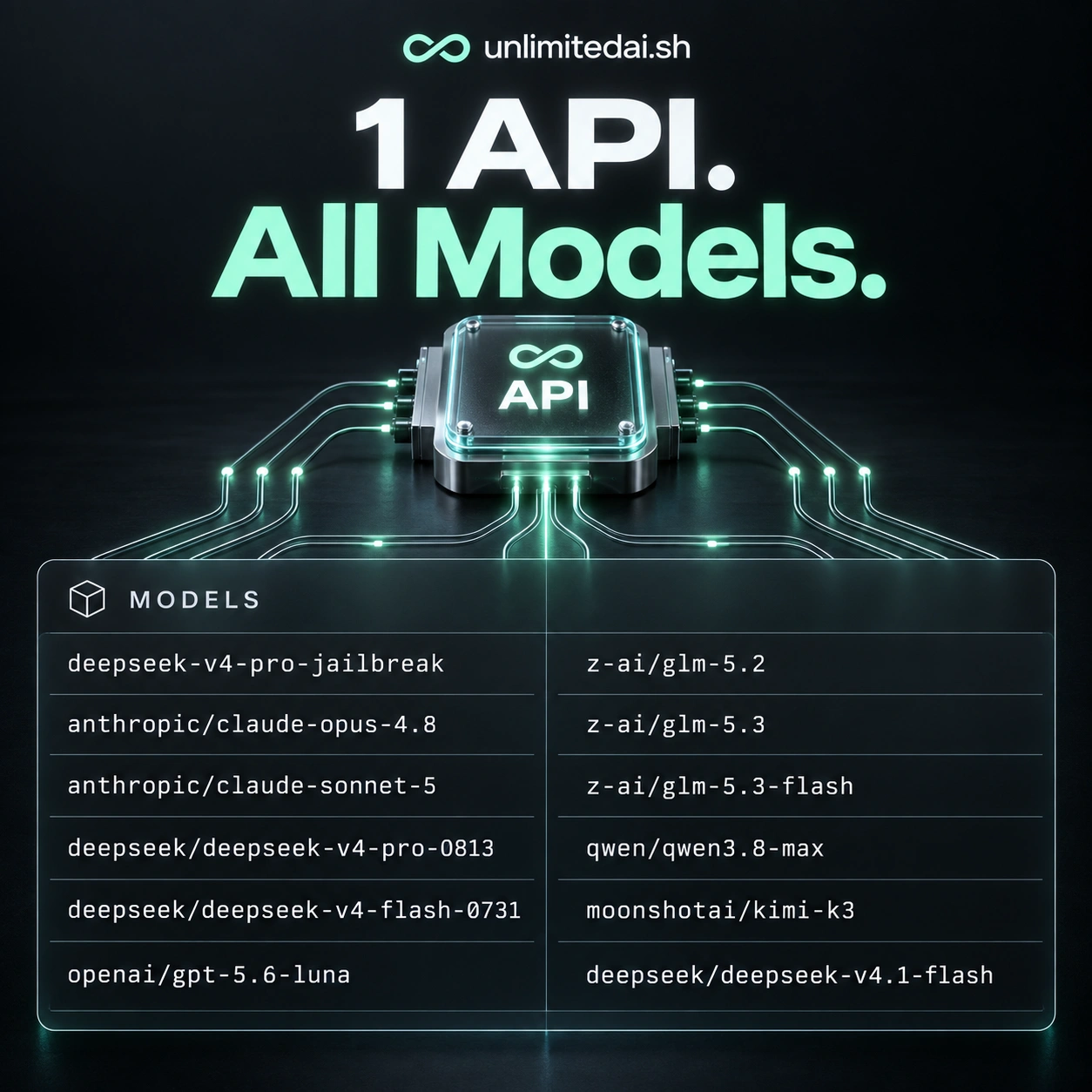
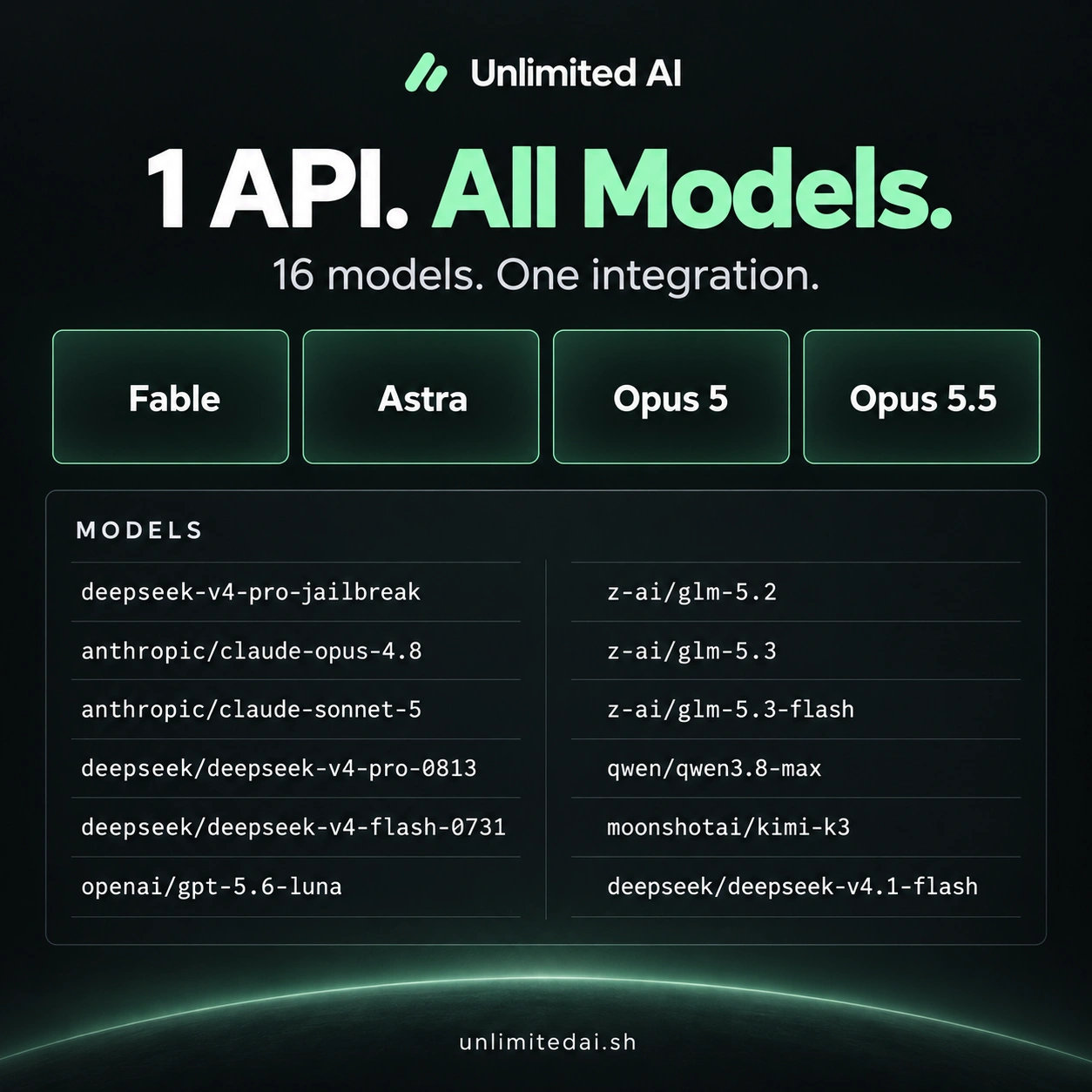
Compare Unlimited AI's model lineup, timed plans, and token packages, then confirm Continue compatibility for the exact endpoint and model you intend to use. No end-to-end Unlimited AI–Continue integration has been tested for this article. Ask support about the specific workflow as well as basic API connectivity.
Frequently asked questions
Which endpoint value should I use?
Use the API base URL in your provider’s delivery instructions, not the storefront address.
Does one model work equally well for every feature?
Not necessarily. Evaluate the workflows and capabilities you need separately.
Can a configuration flag fix an unsupported protocol?
No. The client settings and the server’s implemented API must match.
More coding guides
Choose API access for your workflow
Compare token packages, explore the model catalog, and confirm your tool's compatibility before purchasing.
View Unlimited AI plansAsk about compatibility